



Overview
Meta Business Verification, or BV for short, is an approval process Meta requires of businesses that want to use advanced features: the WhatsApp Business API, high-volume ad accounts, the green tick (Green Tick), and the Conversions API. The process looks simple, but it has plenty of reasons for rejection. This article explains when verification is required, how to check your status, which documents to prepare (with a section specific to Israel), how to get through all the steps successfully, and what to do when Meta rejects you.
Background: when do you actually need Business Verification
Not every business has to verify right away. Meta requires BV at specific moments:
- When opening the WhatsApp Business API through a BSP (such as Mumble), or when raising the daily messaging limit above the initial threshold.
- When ad spend on the account starts to exceed a certain threshold (varies by country).
- When requesting the green tick (Green Tick) for a WhatsApp Business account.
- When using the Conversions API and requesting full access to the measurement tools.
- When Meta flags the account as “requires verification” following unusual activity or reports.
When in doubt, go to the status section below and see what Meta is showing. Most customers connecting to Mumble complete verification as part of their initial WhatsApp Business API connection.
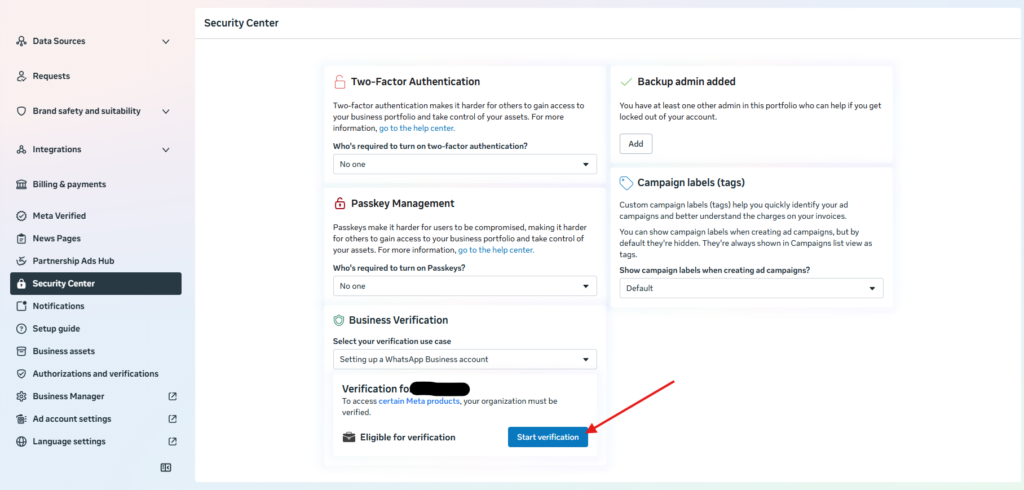
Checking your status and the Start Verification button
Before you begin, confirm what state your business is in. Go to Meta’s Business Settings, open the Security Center, and look for the card called Business Verification. Three possible states:
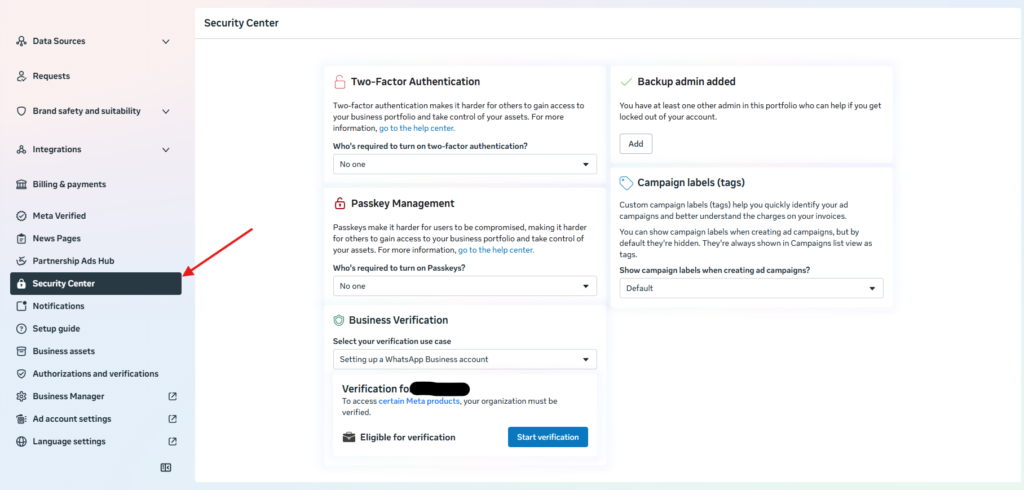
- Not Started. The “Start Verification” button appears blue and clickable. You can begin.
- Pending Review. A request has already been submitted and is under review. Typical wait is between 24 hours and 5 business days, sometimes longer.
- Verified. The business is already verified. No need to repeat the process.
The button is grayed out — what that means
If the “Start Verification” button is gray and not clickable when you open the Security Center, it’s usually not a malfunction but a Meta setting. Common reasons:
- The business isn’t connected to the WhatsApp Business API yet. In many cases, Meta only allows verification after you’ve started a WABA connection. In Mumble, that means you need to begin WhatsApp onboarding (connecting a new or existing number) before the button unlocks.
- The business account is very new. A Business Manager account opened less than 48 hours ago may not be eligible for verification yet. In that case you have to wait.
- Basic account details are missing. If the business profile is missing a name, address, or phone number, Meta won’t let you start verification.
Finding your BMID (Business Manager ID)
The BMID is the unique identifier of your business account in Meta. You’ll need it for any direct contact with Meta support or when opening a support ticket through Mumble. In every support request, the BMID is the first detail you’ll be asked for.
Three ways to find your BMID:
- From the business info menu. Business Settings, the Business Info section; the ID appears at the top of the page under the business name.
- From the browser URL. On any Business Settings screen, the URL includes a business_id=XXXXX parameter. The number after business_id is your BMID.
- On the Business Verification card itself. The verification screen shows an account ID, which is identical to the BMID.
Keep the BMID somewhere accessible. It doesn’t change over the life of the account, and it saves time in every support request.
Required documents
Meta requires two types of document: one that verifies the business name, and one that verifies the address or phone number. Each document must be current (no older than 90 days, except for registration documents), complete (not cropped), legible, and in a name identical to the one entered in the form.
Documents that verify a business name
| Country | Acceptable name documents |
|---|---|
| Israel | Authorized Dealer / Exempt Dealer certificate (Osek Murshe / Osek Patur), Certificate of Incorporation (for a limited company), bank account confirmation showing the business name |
| USA | Articles of Incorporation, EIN Letter (IRS CP-575), DBA Certificate, Business License |
| UK | Certificate of Incorporation (Companies House), VAT Certificate, HMRC Letter |
| India | GST Registration Certificate, Certificate of Incorporation, Shop and Establishment Certificate |
| EU (general) | Trade Register Extract, VAT Registration Certificate, Chamber of Commerce Certificate |
Documents that verify an address or phone number
| Country | Acceptable address/phone documents |
|---|---|
| Israel | Municipal tax (Arnona) bill (up to 90 days old), electricity / water / phone / internet bill, bank account confirmation (call the bank and ask them to print the business address and phone on the confirmation) |
| USA | Utility bill (electric, gas, water, internet, phone) under business name, recent bank statement |
| UK | Council Tax bill, utility bill, business bank statement |
| Other | Recent utility bill or bank statement in the business’s legal name and exact address |
Specific guidance for businesses in Israel
The classic combination that works best for Israeli businesses:
- For name verification: an Authorized Dealer or Exempt Dealer certificate (for the self-employed), or a Certificate of Incorporation from the Registrar of Companies (for a limited company). It’s important that the name on the certificate matches the name entered in Meta’s form letter for letter, including “Ltd.” if that’s part of the official name.
- For address verification: a bank account confirmation that includes the business’s full address and business phone. If the bank doesn’t provide this automatically, call the branch and specifically ask for “an account confirmation with the business address and phone details for Meta verification purposes.” Most banks issue the confirmation within a few days.
Alternative: a municipal tax (Arnona) bill from the past year that shows the business name. If the Arnona is registered under a personal name rather than the business name, it won’t be accepted.
Very important: the business name, address, and phone in all documents must be identical. If a document says “12 Ibn Gabirol, Tel Aviv” and Meta’s form is filled in with “12 Ibn Gabirol, Tel Aviv-Yafo,” the request will fail. Be exact.
Verification steps, one by one
Step 1: Go to the Security Center
Open Business Settings in your Meta account. In the side menu, scroll down to “Security Center.” You can also go directly via this link: business.facebook.com/latest/settings/security_center.
Step 2: Start verification
In the Security Center, find the Business Verification card and click Start Verification. If the button is gray, go back to the “button is grayed out” section above.
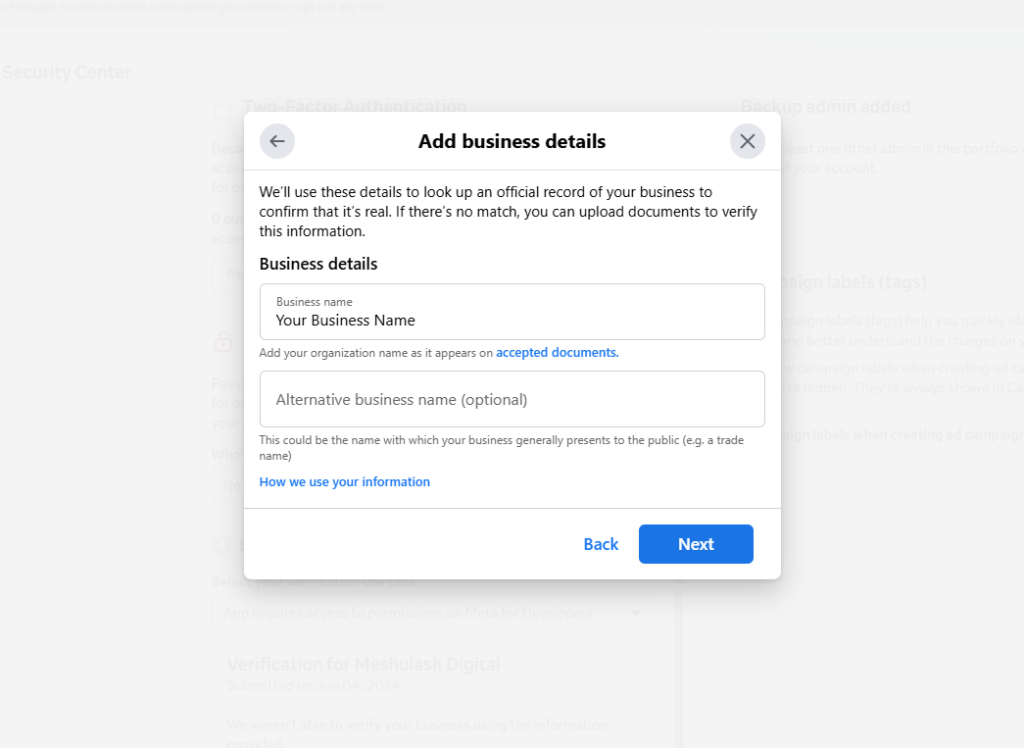
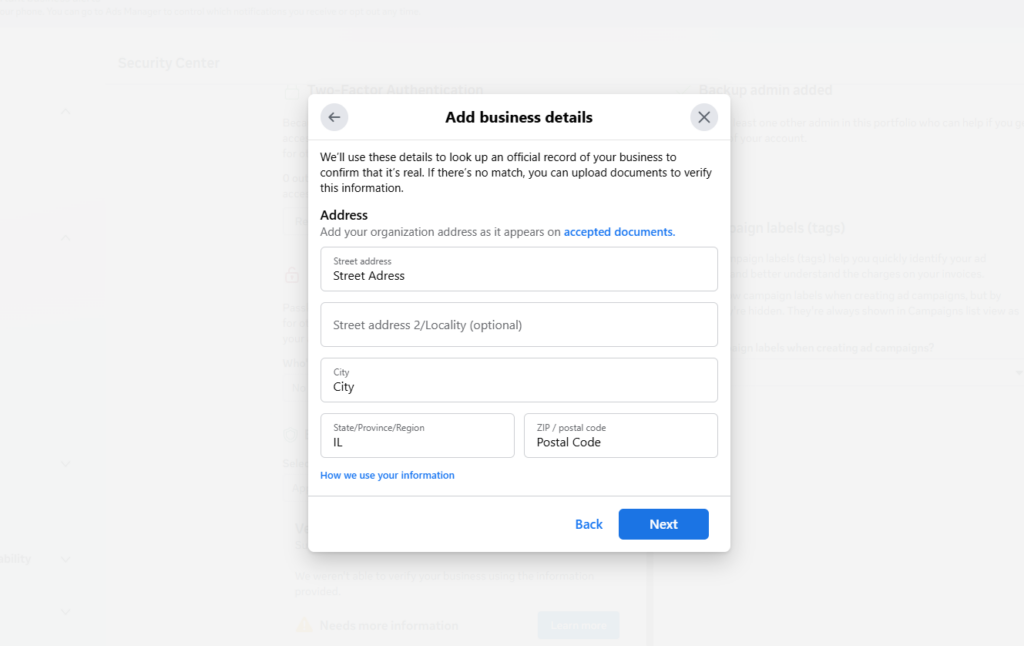
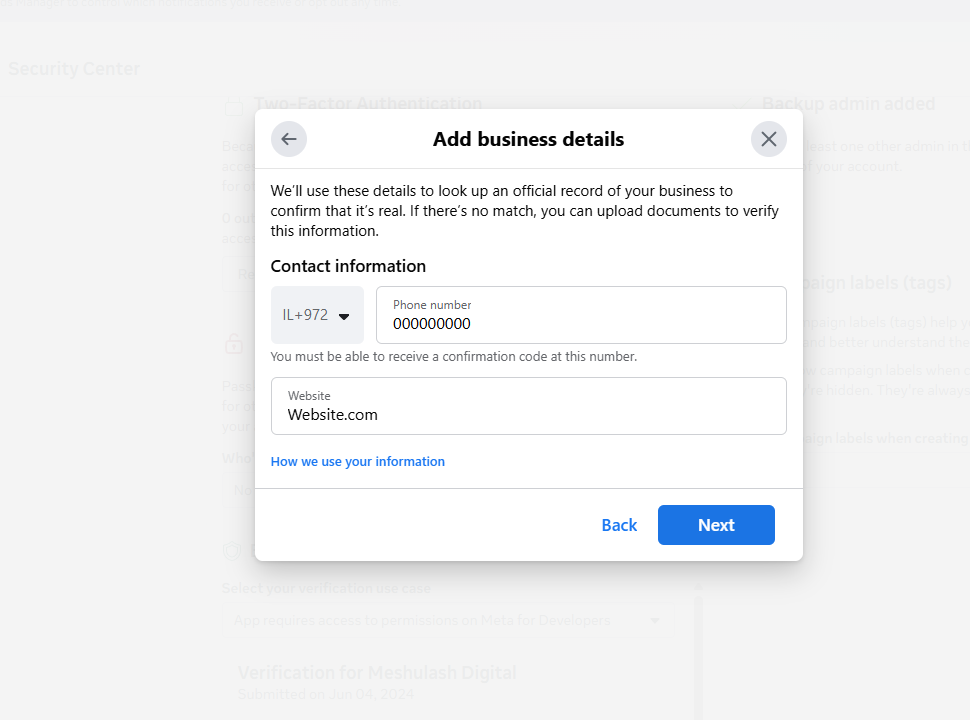
Step 3: Enter business details
Meta will ask for the four fields below. Enter them exactly as they appear in the documents you prepared:
- Legal Business Name. The official business name, including “Ltd.” if relevant.
- Address. Full address, including postal code.
- Business Phone Number. Business phone in international format.
- Website. An active business website (your own domain, not a Facebook page).
Step 4: Upload identity documents
At this step Meta asks you to upload the two documents you prepared: one that verifies the business name, and one that verifies the address or phone. Files can be PDF, JPG, or PNG, up to 10MB each. Make sure they’re clear, not cropped, and not mirrored. If a document is in Hebrew, there’s no need to translate it. Meta reviews documents in Hebrew too, using a team of reviewers in different languages.
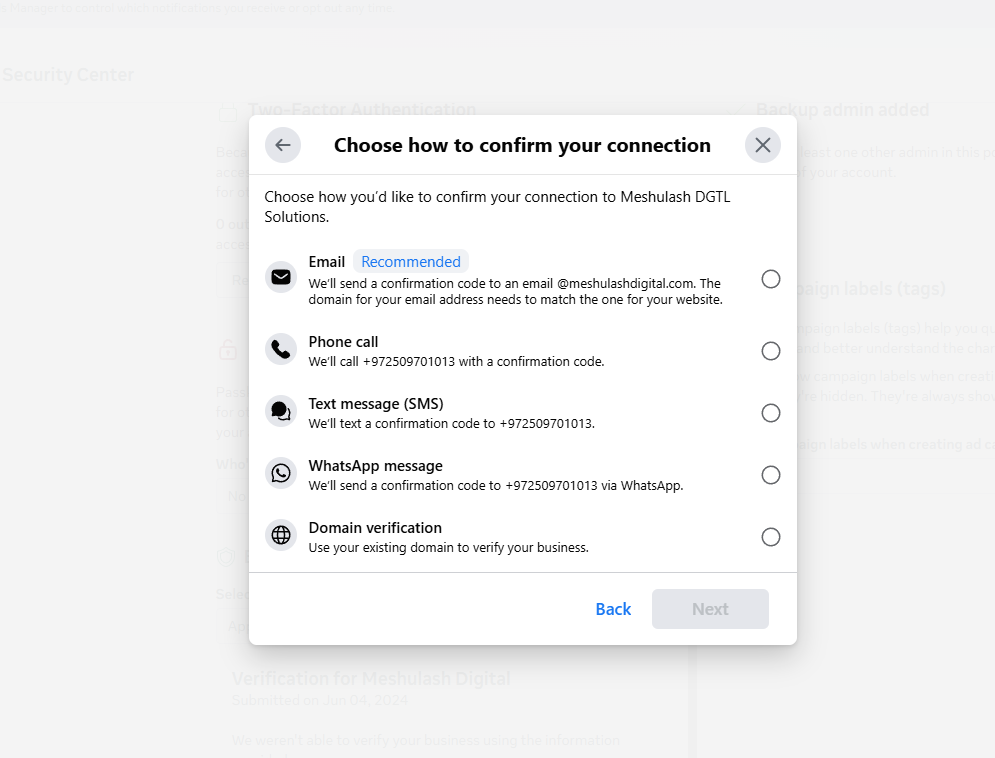
Step 5: Choose a verification method and receive a code
Meta will send a verification code to confirm you’re an authorized representative of the business. Three options:
- Email — the recommended method. Requires an email tied to the business domain (for example name@yourbusiness.com), not a personal Gmail. The most reliable in Israel.
- Phone call. An automated call to the business phone entered in the form. Usually works, but international calls sometimes fail to reach Israeli numbers.
- SMS. Less recommended in Israel. International messages are sometimes blocked by mobile carriers.
Step 6: Enter the code and wait
After you enter the code, the request goes to Meta for review. The status will show Pending Review. The typical review time is between 24 hours and 5 business days, but under heavy load it can reach 10 days. You can return to the Security Center at any time to see the updated status.
The 10 most common reasons for rejection
Meta doesn’t always spell out exactly why it rejected a request. From guiding customers through the BV process, these are the 10 most common reasons for rejection (based on the Mumble team’s experience):
- The name in the form doesn’t match the name in the document. “Ibn Gabirol Ltd.” in the form, “Ibn Gabirol Ltd. Publishing” in the document. Meta won’t approve unless they match word for word.
- The document is too old. A bill or bank confirmation older than 90 days is rejected, even if it’s original.
- The document is blurry or cropped. A screenshot, a photo of a phone screen, or a manually edited PDF will be rejected.
- The address doesn’t match. The document says “Tel Aviv” and the form says “Tel-Aviv.” Meta is sensitive to punctuation and hyphens.
- The phone doesn’t match. Two different places, one number.
- A personal document instead of a business one. An electricity bill in a personal name won’t verify a business.
- The verification email isn’t tied to the domain. A personal Gmail won’t be accepted for email-based verification. An address at your-domain.com is required.
- The file is in an unsupported format. Use PDF or JPG, not DOCX, HEIC, or WebP.
- The business account is already verified under another entity. If a business with the same name or phone was verified in the past, a conflict can arise.
- Suspicious activity on the account. If your Business Manager account has had spam reports or blocks in the past, Meta requires a deeper review.
What to do after a rejection
After a rejection, Meta lets you resubmit the request. The steps:
- Read the rejection message. Even if it’s generic, it contains a hint (for example, “Document did not match” points to a gap between the form and the document).
- Fix the specific problem. There’s no point resubmitting the same document — the result will be identical.
- Wait 24 hours before resubmitting. Meta sometimes blocks submissions that come too fast.
- Resubmit, with up-to-date details and a different document if needed.
After two consecutive rejections, it’s worth considering contacting Meta support directly or through the Mumble support team.
How to contact Meta support
Meta doesn’t offer phone support. Every contact goes through an online form or chat within Meta. Three ways, in descending order of effectiveness:
- Contact through Mumble. The fastest path for issues specific to the WhatsApp Business API. Reach the Mumble support team by chat or email, and include your BMID and a description of the problem. The Mumble support team opens a support ticket with Meta directly through the partner channel.
- Business Help Center. facebook.com/business/help. Search for the topic of your issue; Meta will offer articles and sometimes, at the end, lets you open a contact form.
- Meta Business Pro (paid). A paid support program for businesses spending above a certain threshold on ads. It provides faster access to human support. Mainly relevant for larger businesses.
In every request, include: the account’s BMID, a screenshot of the rejection message, a description of the documents you uploaded (not the documents themselves, just a description), and a precise description of the problem.
More common issues
The status has been stuck on Pending Review for 10 days
Reason: a backlog in Meta’s review team, or a specific issue being investigated. Fix: wait up to 14 days before reaching out. If after 14 days the status is still Pending, contact the Mumble support team or use the Business Help Center with your BMID.
Verification was approved but the WhatsApp Business API still hasn’t opened
Reason: BV is one requirement among several. You may be missing an approved Display Name for WhatsApp, or the number may not yet be connected to the business account. Fix: make sure you’ve completed the rest of the WhatsApp connection (see the connection articles in the links).
I used a new domain not yet registered with Meta and no code arrived by email
Reason: Meta sometimes flags a very new domain as untrustworthy. Fix: make sure the website is live, has valid DNS, and that the email is active. Choose Phone call as an alternative verification method.
The legal name is in Hebrew, and Meta requires English
Reason: for Israeli businesses with a Hebrew registered name, Meta sometimes requires a translation. Fix: use the official English translation of the business name, as it appears in international banking documents, or type the name in Hebrew exactly as it appears in the document. Both options are accepted as long as they match the document.
Related articles
- Connecting a new WhatsApp number to Mumble
- Connecting an existing WhatsApp Business number to Mumble
- Message templates: statuses and rules
- Meta Business Help Center
The bottom line
Meta Business Verification goes through quickly when the documents are in order and the form details match letter for letter. Most rejections are small gaps between the form and the document, not fundamental problems — getting the details to match exactly saves most of the back-and-forth with Meta.