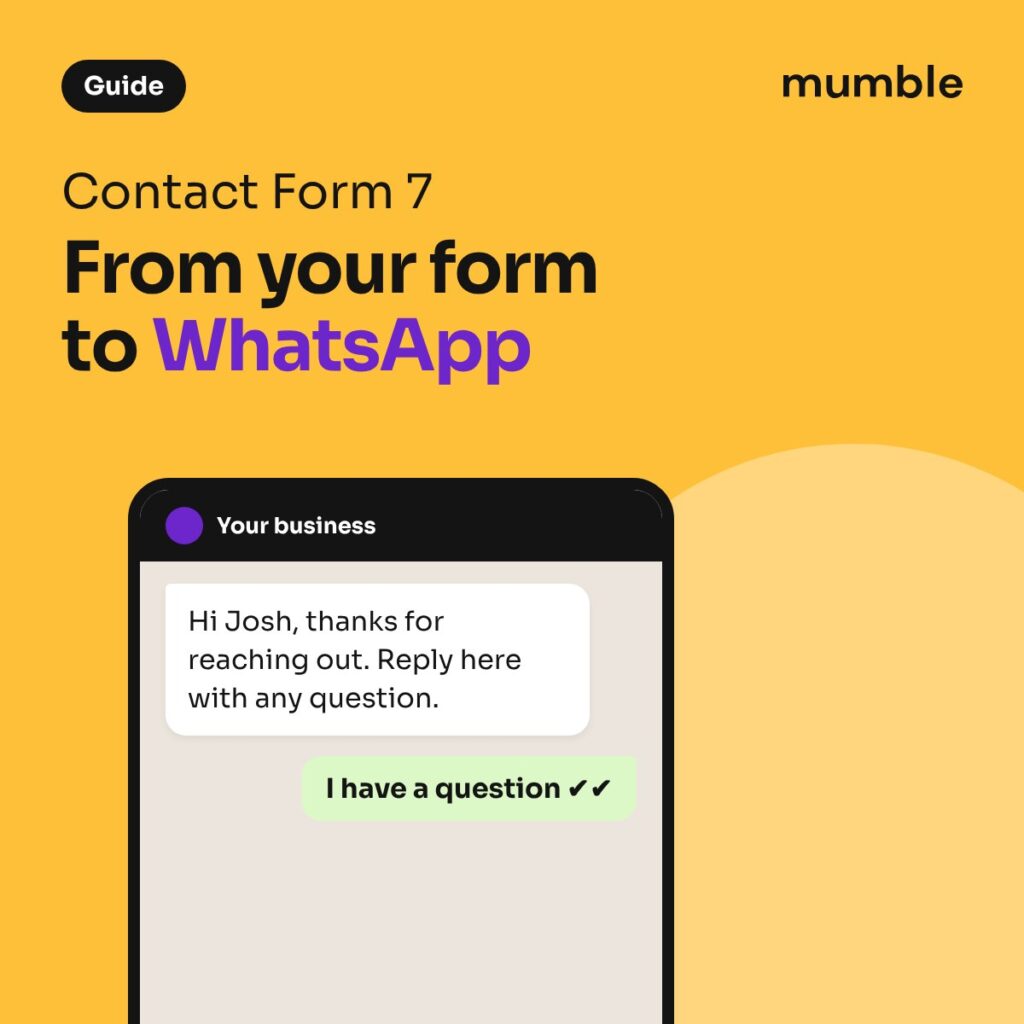

In short: The Mumble WordPress plugin detects 10 form systems automatically, including Contact Form 7 and WPForms. Everyone who submits a form gets a WhatsApp message from your business number, and any other form connects with one line of code.
Supported forms
The plugin detects forms from: Contact Form 7, WPForms, Gravity Forms, Fluent Forms, Ninja Forms, Formidable, Forminator, MetForm, JetFormBuilder, plus Elementor Pro (separate Elementor guide). You don’t need to change anything in the form itself: the plugin finds the phone field and the name.
Setup in short
- Install the plugin: Plugins → Add New → search for “Mumble” → install and activate.
- In the Mumble menu, paste your API key (in the Mumble dashboard: Settings → Technical profile) and turn on test mode.
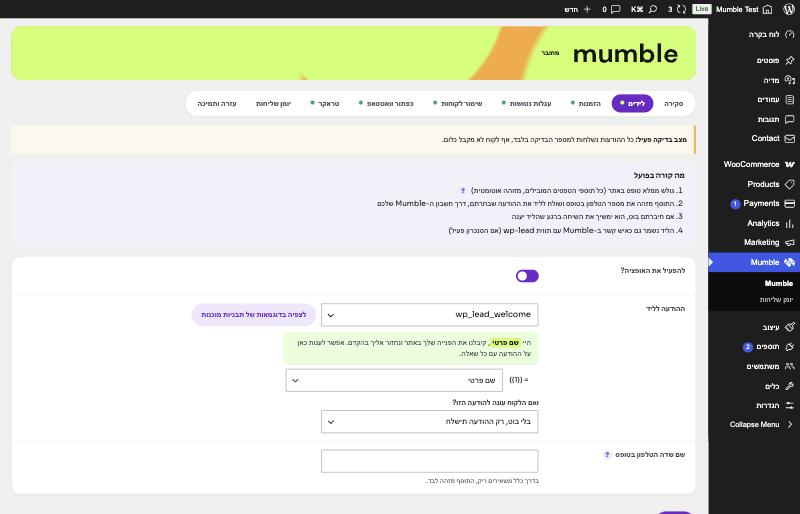
- In the Leads tab, turn the feature on, pick a template and map the variables, for example
{{1}}= first name. - Submit the form with your own number, check the message arrives, and turn off test mode.
Contact Form 7 tips
- Phone field: use a
[tel* your-phone]field rather than a plain text field, for accurate detection and a number keypad on mobile. - Two phone fields: if the form has more than one, enter the right field name in the plugin, for example
your-phone. - Marketing consent: a confirmation of an inquiry is a utility message. If you plan to send offers later, add a consent checkbox (
[acceptance]) so you have a record that the lead agreed.
My form isn’t on the list
Any other form or system connects with one line of code that passes the lead’s phone and name to the plugin:
do_action( 'mumble_wp_lead', array(
    'phone' => $phone,
    'name'  => $name,
) );
Put it in a function that runs after the form is submitted (for example your form plugin’s submission hook). From there the plugin works as usual: it sends the message and saves the lead in Mumble.
What happens when the lead replies
Every lead is saved in Mumble as a contact with the wp-lead label and its source data (UTM, gclid, fbclid). If you attached a chatbot, it continues the conversation as soon as the lead replies. If not, the chat lands in your shared team inbox and your team answers from there.
Everything the plugin does, including WooCommerce messages and a WhatsApp button for your site: plugin page.