
In short: With the Mumble WordPress plugin, everyone who submits an Elementor Pro form on your site gets a WhatsApp message from your business number within seconds. No Zapier, no code, and every lead is saved as a Mumble contact with its traffic source.
Why WhatsApp instead of email
Someone who just submitted a form is waiting for an answer. A confirmation email lands in Promotions or spam, and often never gets opened. A WhatsApp message reaches the phone the lead is holding, and they can reply in one tap. When they reply, the conversation is already open and your team picks it up from there.
What you need
- A WordPress site with Elementor Pro and a form (Form widget).
- A Mumble account connected to the WhatsApp Business API.
- An API key from the Mumble dashboard: Settings → Technical profile.
- An approved message template for new leads. Don’t have one? The plugin creates one in a click, as shown below.
Step 1: Install the plugin
- In WordPress: Plugins → Add New.
- Search for “Mumble”, install and activate. You can also download it from WordPress.org.
- A Mumble item appears in the admin menu.
Step 2: Connect your account and turn on test mode
Paste your API key and save. Then turn on test mode: every message goes only to your own number, so you can test everything without any customer receiving anything.
Step 3: Turn on a message for every lead
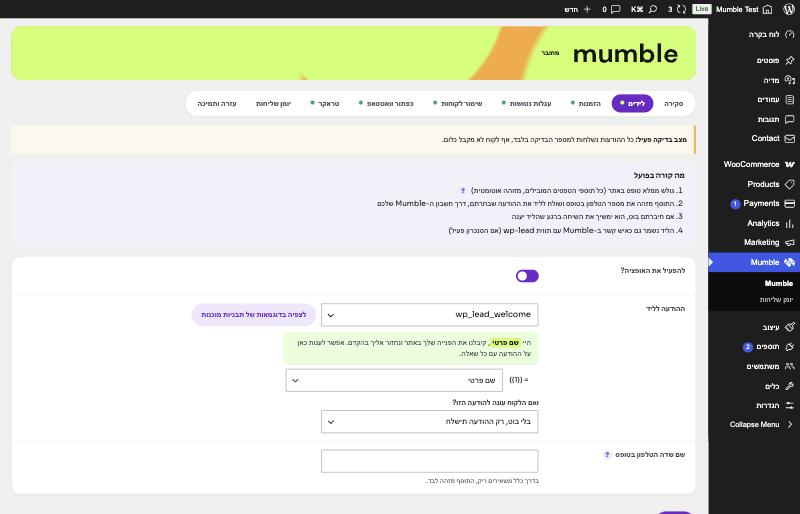
- In the Leads tab, turn the feature on.
- Under Lead message, pick a template. Don’t have one yet? The ready-made template examples create one in your account with one click. Meta needs to approve it, which usually takes minutes.
- Map each variable to a form field, for example
{{1}}= first name. - Under If the customer replies, you can attach a Mumble chatbot to continue the conversation, or keep “No bot”.
- You can leave the phone field name empty: the plugin finds the field on its own. Fill it in only if your form has more than one phone field.
Step 4: Test and go live
Submit the form on your site with your own number and check that the message arrives. If everything works, turn off test mode. From now on every lead gets a message and is saved in Mumble as a contact with the wp-lead label and its source data: UTM, gclid or fbclid. That way you see exactly which campaign every lead came from.
Example message
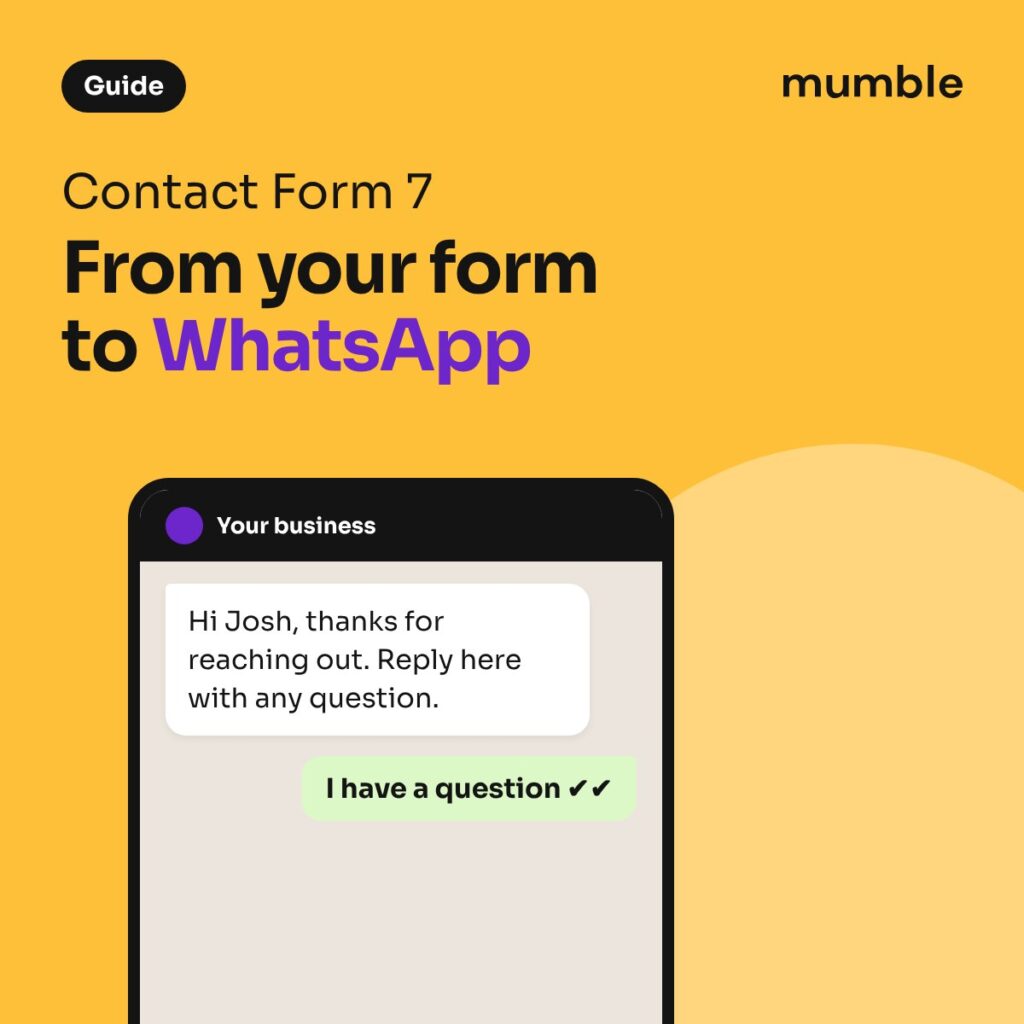
Hi {{1}}, we got your inquiry on our website and will get back to you shortly. Feel free to reply here with any question.
A confirmation like this is usually a utility message, which costs less than a marketing message. If you add an offer or a discount, Meta will classify it as marketing. To estimate costs, use the message cost calculator.
Common issues
- The customer didn’t get the message: check that test mode is off and that the template is approved by Meta.
- International numbers: numbers in international format pass through as is. Local numbers are resolved by the visitor’s country. If you get many leads from abroad, add a country code field to the form.
- Two phone fields in the form: enter the ID of the right field as the phone field name (in Elementor: edit the field → Advanced → ID).
- Not an Elementor form: the same flow works with Contact Form 7, WPForms, Gravity Forms and more. See the guide for other forms.
What else you can connect
The same plugin also sends WooCommerce order messages and abandoned cart reminders, and adds a floating WhatsApp button to your site. Everything is on the plugin page.