

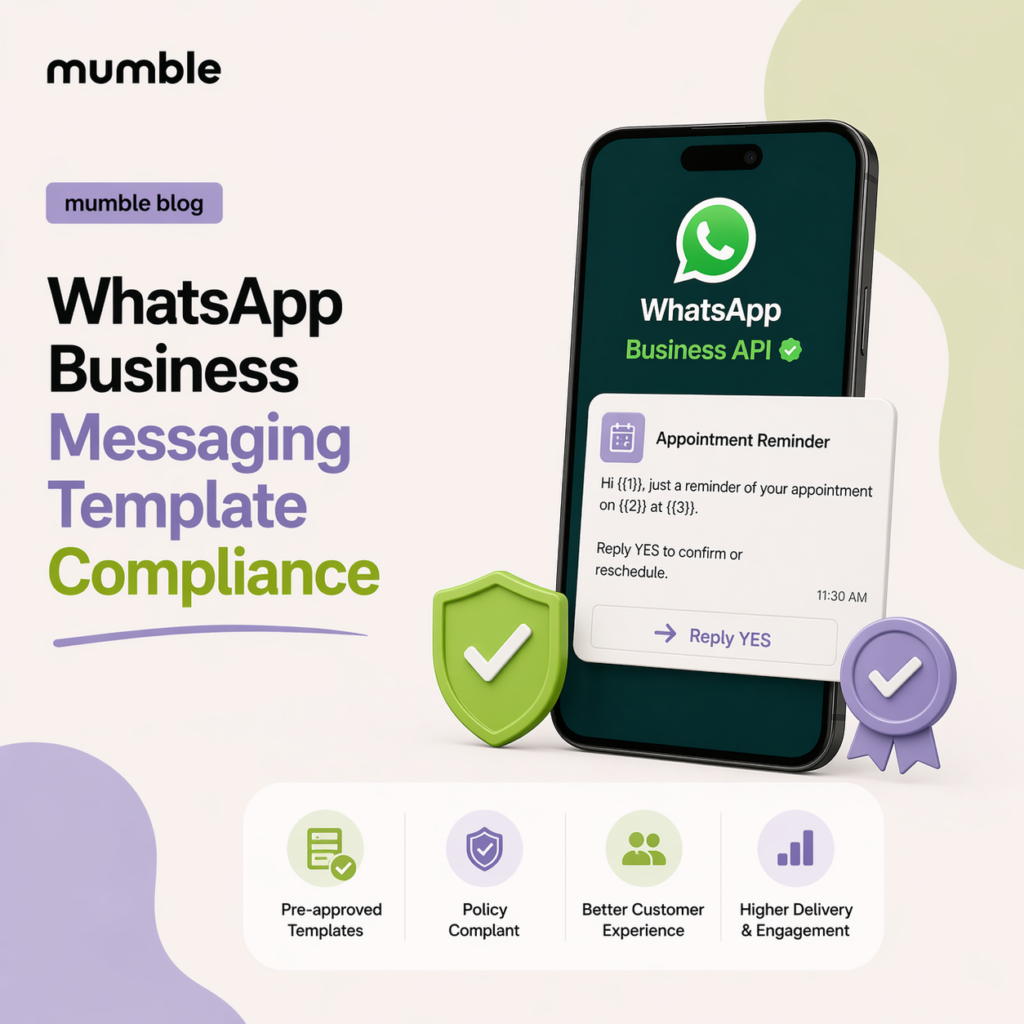

Mastering WhatsApp API Template Compliance for Flawless Broadcast Messaging
When you press “send” on a WhatsApp campaign, you are entering the most personal digital space your customer possesses: their private chat list. Meta protects this environment aggressively, and rightly so. If your business treats WhatsApp like a traditional, high-volume email blast without regard for platform rules, you will be penalized.
For businesses scaling their communication, understanding WhatsApp Business Messaging template compliance is not just a legal checkbox—it is the foundation of your broadcast success. It is incredibly frustrating to plan a massive promotional push only to have your messaging blocked at the starting line due to a rejected template. Worse, repeated compliance failures can lead to plummeting quality scores, restricted messaging limits, and suspended WhatsApp API accounts.
As part of your Mumble Customer Success team, I want to ensure your messaging strategy is both highly converting and entirely bulletproof. Let’s break down exactly what Meta looks for, why templates get rejected, and how to keep your account in perfect standing.
The Foundation: Choosing the Right Category
Every template you create must be categorized correctly. Meta uses these categories to determine pricing, enforce policies, and monitor user experience. Misclassifying a template is one of the most common reasons for immediate rejection.
| Category | The Core Purpose | Compliance Watch-Outs |
|---|---|---|
| Marketing | Promotions, offers, newsletters, back-in-stock alerts, and cart abandonment reminders. | Highly scrutinized for spam. Must offer a clear opt-out path. If your message contains even a hint of a promotion, Meta considers it Marketing. |
| Utility | Post-purchase notifications, shipping updates, account alerts, and billing statements. | Cannot contain upselling. If you send a shipping update and add “Use code SAVE10 on your next order,” Meta will reject it or re-categorize it as Marketing. |
| Authentication | One-time passwords (OTPs) and account recovery codes. | Strictly enforced formatting. These must only contain the security code and an optional expiration time. No URLs or extra text allowed. |
The Anatomy of a Rejection
When you submit a new template through the Mumble dashboard, it goes to Meta for review. This process is largely automated, though human reviewers occasionally step in. If your template is rejected, it almost always falls into one of these specific compliance traps:
- Variable Abuse: Variables (the
{{1}}placeholders you use for personalization) are strictly monitored. Meta will reject your template if your variables are “floating” or too broad. For example, a template that saysHi {{1}}, {{2}}will be rejected because Meta cannot determine the context of the message. The surrounding text must clearly define what the variable will be. - Grammar and Spelling: Professionalism matters. Meta actively flags templates with excessive typos, poor grammar, or inappropriate formatting (like ALL CAPS SHOUTING or excessive emojis).
- Prohibited Content: Your templates must adhere to Meta’s Commerce and Business Policies. You cannot use the WhatsApp API to promote adult content, alcohol, weapons, gambling, or unregulated supplements.
- Asking for Sensitive Data: Never create a template that asks a customer to reply with full credit card numbers, government identification, or banking credentials. Meta’s compliance engines will immediately flag this as a security risk.
The Golden Rule of Variables: Always Provide Context
When you build a template in Mumble, you are prompted to provide sample values for your variables. Do not skip or rush this step. If your template includes a media header (like an image or PDF) and variables in the body, the sample data is what Meta’s reviewers use to understand your intent.
If your variable {{1}} is meant to be a product name, put “Running Shoes” in the sample field, not “Test.” If you provide accurate, realistic samples, your approval rates will skyrocket.
The Post-Approval Danger Zone: Quality Ratings
A common misconception is that once a template is approved, you are safe forever. This is false. Template compliance is a continuous lifecycle.
When you launch your Broadcast Messaging campaign, Meta monitors how your customers react. If your customers frequently block your business or report your messages as spam, Meta will dynamically change your template’s status. An “Active” template can quickly degrade to “Flagged.” If the negative feedback continues, Meta will pause or entirely disable the template, preventing you from sending it to anyone else.
To prevent this, ensure your messaging provides genuine value. Respect your customers’ opt-in preferences, use clear language, and avoid overwhelming them with multiple promotional broadcasts in a single week.
Monitoring Your Next Campaign
Now that you understand the mechanics of Meta’s compliance engine, the most critical step is to audit your active campaigns. Log into your Mumble dashboard and navigate to your active templates. Check the quality rating indicator next to your most frequently used broadcast messages.
If you see a template trending from “High” to “Medium” or “Low” quality, do not wait for Meta to disable it. Pause your campaign immediately. Review the copy, ensure you aren’t sending to unengaged users, and submit a revised, softer version of the template. If you’re ever unsure why a specific draft might cross Meta’s compliance lines, remember that Mumble Support is always here to review your structure before you hit submit.
